
Sidos provides a streamlined way to correct and lock BSSID to AP name pairings directly within the project, so you can clean up mismatches from surveys, standardize AP naming, and maintain accurate RF maps—without needing to open a support ticket or wait for manual intervention.
Find and Download the File
Start by navigating to the project’s **Details** screen for the survey you want to clean up. Once there, locate and click the **Import** button in the top right corner of the interface to begin bringing in your updated BSSID to AP name mappings.

Once in the Import view, you can download the template file directly from this screen and use it as the starting point for your updated BSSID to AP name mappings. This file will contain a complete list of all detected BSSIDs along with their associated AP names (when the AP is broadcasting its SSID) captured during the survey.
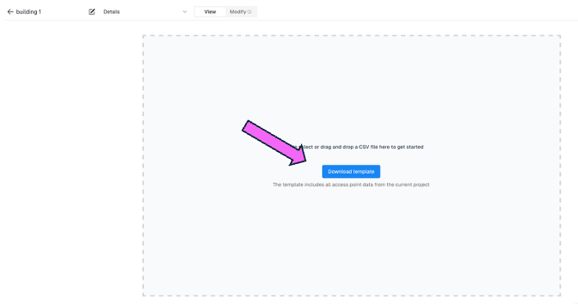
Note: In some cases, even when an AP is correctly broadcasting its SSID, the import process can still incorrectly associate one or more BSSIDs. If you notice any mismatches, continue following the steps below to correct, the BSSID to AP name pairings.
Modify the File
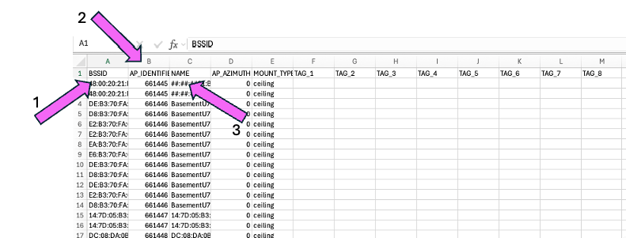
In the exported file, you’ll see a row for every BSSID (1) that the Sidos Wave detected during the survey. For each BSSID, the file also includes the Sidos AP Identifier (2), the current AP Name (3), the AP Azimuth (rotation/orientation), Mount Type (for example, ceiling or wall mount), and any associated Tags. These fields give you everything you need to assign attributes and verify which BSSIDs belong to which physical APs.
We recommend that you do NOT modify the Sidos AP Identifier. This value is a randomly generated ID assigned by Sidos based on the pairing algorithm.
One of our customers wrote a Python Script to help with the AP Naming. You can find that script here.
Upload the File
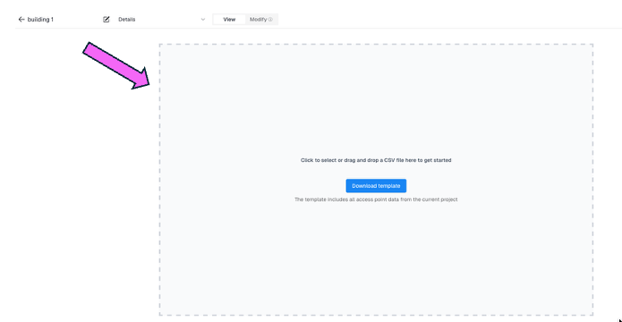
Once you ensured your BSSIDs have the proper AP Name correctly correlated. Simply drag the file into the large upload box.
After the file is processed, a window will appear asking what you want to modify. Select **AP Pairings**, choose the **AP Identifier** (in most cases, **Name** is the best option), and verify that the BSSIDs are displayed correctly. When everything looks correct, click **Accept Pairings**. Sidos Cloud will then recalculate the heatmap, which may take some time depending on the size of your project.
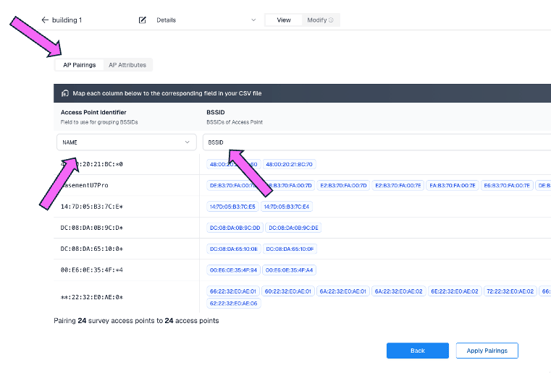
Tip: You can also edit AP attributes such as: AP mount type, Azimuth (rotation), and Tags (colors and shapes), by using the **AP Attributes** tab.