
Troubleshooting Flow
- Check that iOS Local Network access is enabled for the Sidos app.
- Connect Sidos Wave using a supported USB cable and adapter combination.
- If Bluetooth pairing fails, first remove existing pairings from both Sidos Wave and the iPhone/iPad.
- Then re-establish pairing from Sidos Wave and the Sidos iOS app.
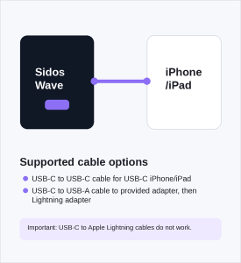
Supported Cable Options
- USB-C to USB-C cable, if the Apple device has a USB-C port.
- USB-C to USB-A cable to the provided adapter, and then the Lightning adapter to the iPhone/iPad.
Important: USB-C to Apple Lightning cables do not work for this connection.
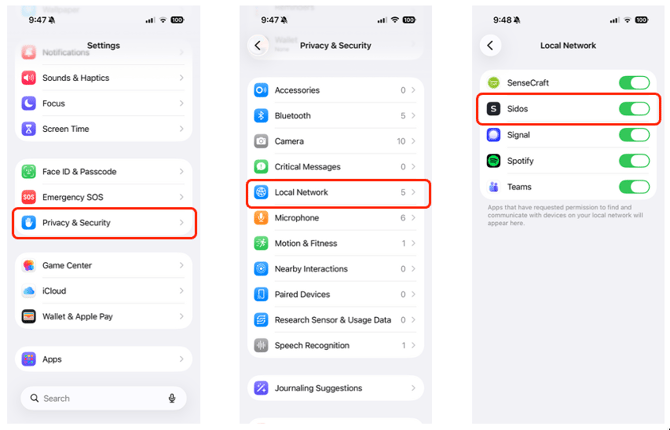
Enable Local Network Access
-
Open Settings on the iPhone or iPad.
-
Go to Privacy & Security > Local Network.
-
Find Sidos in the app list and enable the Local Network switch.
Expected Results
The Sidos iOS app is allowed to discover and communicate with Sidos Wave over the local connection.
Note: This setting usually needs to be enabled only once, unless iOS privacy settings are reset.
Connect via Cable
-
Connect Sidos Wave to the iPhone/iPad using a supported cable and adapter combination.
-
Start Sidos Wave from the side button and select Survey.
-
Start the Sidos iOS app.
-
Scan the QR code and wait for the connection to establish.
Expected Results
-
The Sidos iOS app opens the survey and connects to Sidos Wave.
Important: USB-C to Apple Lightning cables do not work for this connection.
Connect via Bluetooth
-
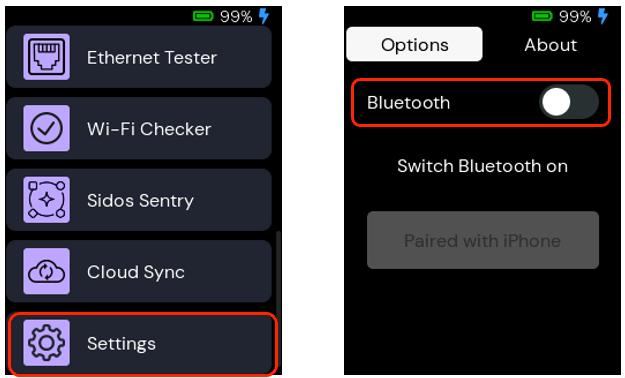
Start Sidos Wave from the side power button.
-
Select Settings from the MicroApp list.
-
Enable Bluetooth.
Expected Results
-
Sidos Wave is ready for pairing management from the Settings screen.
Remove Existing Bluetooth Pairings
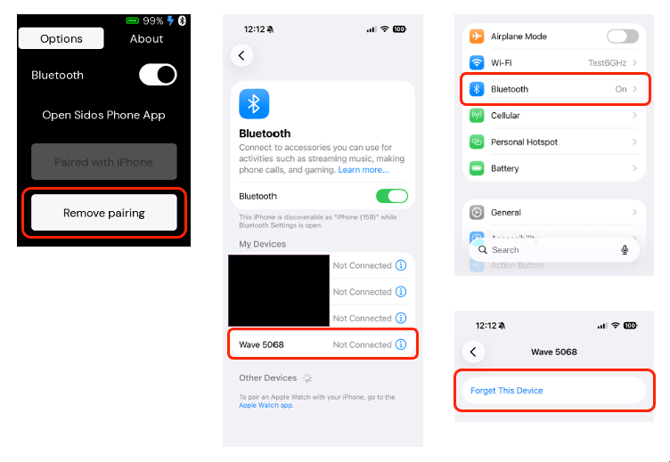
- On Sidos Wave, tap Remove pairing.
- On the iPhone/iPad, open Settings > Bluetooth.
- Find Wave ID (####). The Wave device ID printed on the back of the Sidos device.
- Tap the blue information symbol next to Wave ####.
- Select Forget This Device and confirm.
Expected Results
-
Both devices no longer retain the old Bluetooth pairing.
Important: If pairing is removed from one device, it must also be removed from the other before re-pairing.
Reestablish Pairing to the Sidos Wave
-
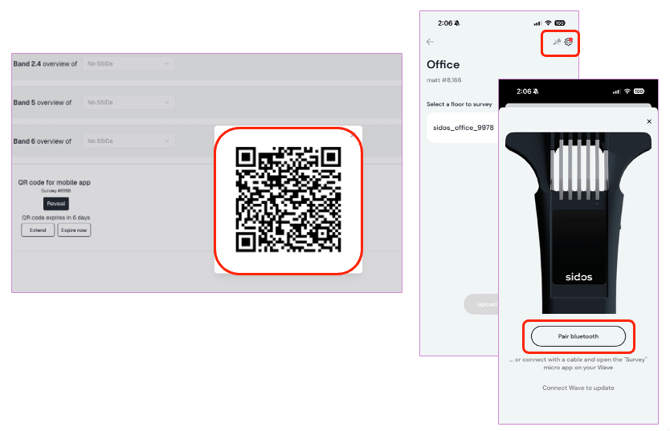
Log in to your Sidos Cloud account at app.sidos.com.
-
Create a new survey and reveal the QR code.
-
Start the Sidos iOS app and select Scan new QR code.
-
Scan the QR code from your computer screen.When the project is displayed in the iOS app, do not select it yet.
-
Tap the cog symbol in the top right corner of the iOS app and select Pair Bluetooth.
Expected Results
-
The Sidos iOS app shows the Pair Bluetooth screen.
Complete Bluetooth Pairing
-
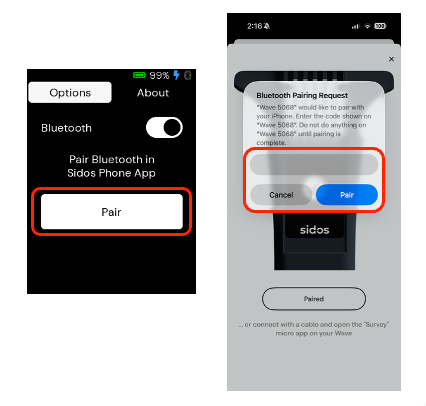
On Sidos Wave, select Settings.
-
Tap Pair.
-
Look for the pairing code on the Sidos Wave screen.
-
Enter the code in the iOS app and tap Pair.
Expected Results
-
The connection is established between Sidos Wave and the iPhone/iPad.
-
Pairing remains active until it is removed from either Sidos Wave or the iPhone/iPad.
Note: If you remove the pairing from one device later, remove it from the other device as well before pairing again.
Multiple Sidos Wave and iOS devices can survey together using the same QR code, but each QR code must be used with one consistent device combination (Wave and iOS). Do not mix different iOS devices or different Sidos Wave units on the same QR code.