We’ve overhauled the building tools and moved them to the building level to make them easier to access as you work on your building model. This update brings the tools into a building-focused workflow, helping you stay organized when creating and editing the elements of your design.
The guide below walks you through the updated tools for walls, 3D objects, slopes, floors, and areas of interest. You’ll learn how to work with prebuilt elements, create rectangular or free-form shapes where applicable, and add, edit, or delete elements as your model develops. We’ll also cover hole in floors (floor openings) and attenuation settings.
Whether you’re starting a new model or revising an existing building, use this guide to get familiar with the new organization and find the tools you need for each step.
Building Revisions
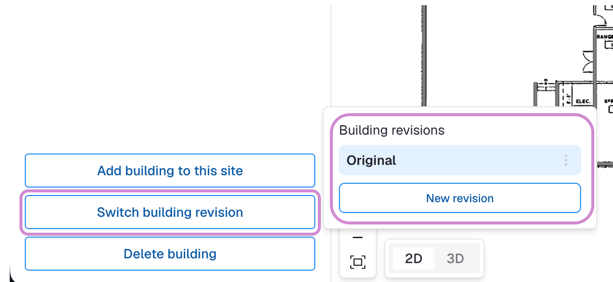
Building revisions let you represent different versions of the same building model. For example, you can manually define materials in one revision and use Sidos AI in another, giving you separate versions for different modeling approaches.
You can also use revisions to plan for a remodel. Keep one revision focused on the building’s current layout and use another to represent proposed changes, such as adding walls, removing partitions, or changing materials. This helps you organize existing conditions and future plans as distinct versions of your building model.
Wall tool
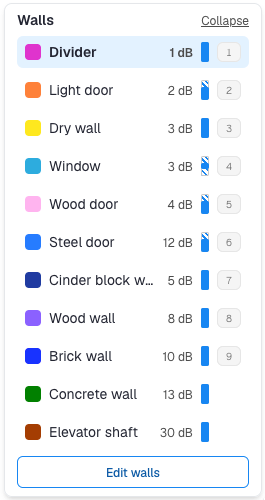
The wall tool includes several predefined materials to help you represent the walls in your building model. Choose the material that most closely matches the wall’s construction, and use it as a starting point when adding walls to your design. Consider each wall individually rather than using the same material throughout the building, since construction can vary between interior partitions and exterior walls.
Examples of predefined wall materials
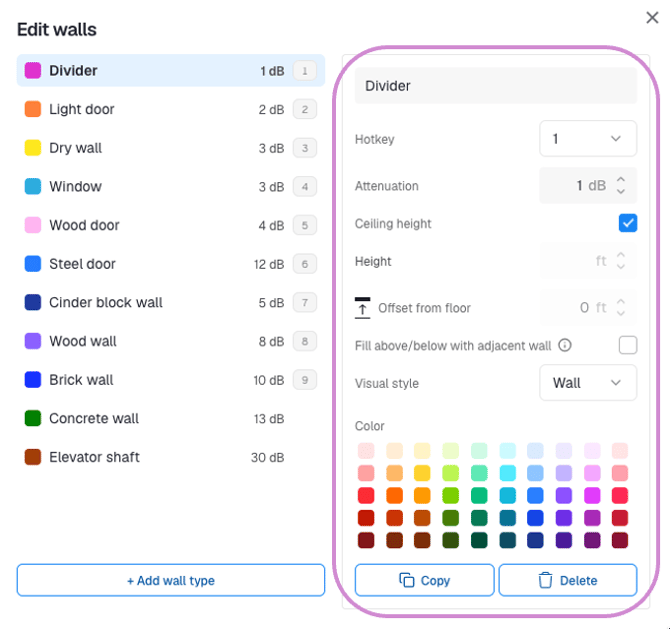
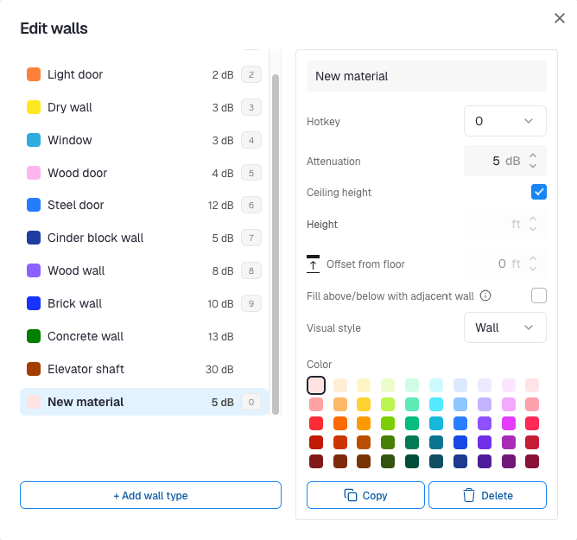
You can add, edit, delete, or clone wall objects for your project. These objects are managed at the building level and persist across all tasks for that building, including Survey, Design, APoS, and Deep Survey. The examples below show the available wall parameters and how to adjust them.
Example showing the parameters for a wall material
Examples of how to add new wall materials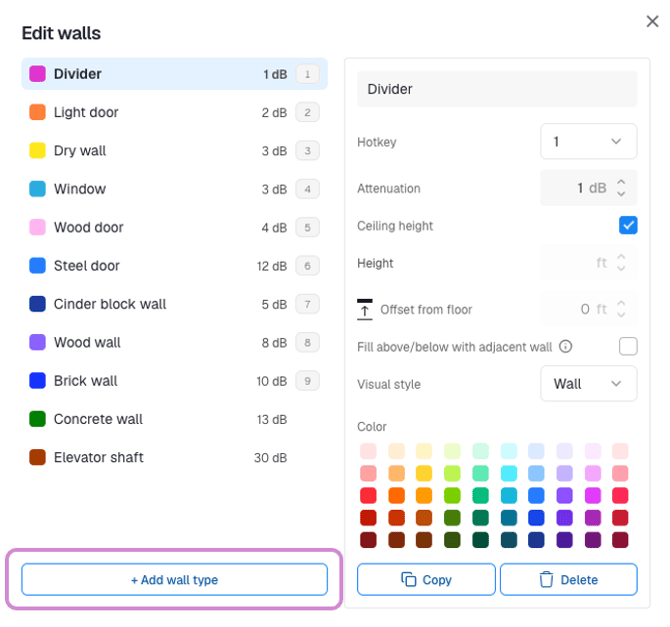
Examples of how to edit wall material parameters
3D Objects Tool
When the wall tool does not adequately represent an element in your building, use the 3D object tool to model its shape and height. This gives you an alternative for features that need more than a wall outline.
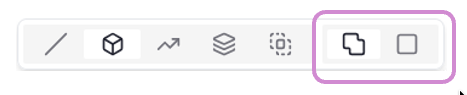
You can draw a rectangular object for a simple footprint or use the free-form option to outline an irregular shape. Set the object’s height to match the feature you’re modeling. By combining the footprint with the appropriate height, you can represent building elements that do not fit a standard wall layout.
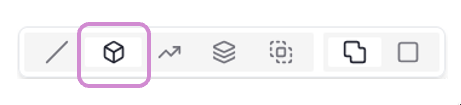
Choose the rectangle tool for rectangular objects or the free-form tool for irregular shapes.
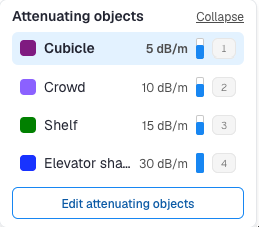
The 3D object tool includes several prebuilt object types to use as a starting point for your model.
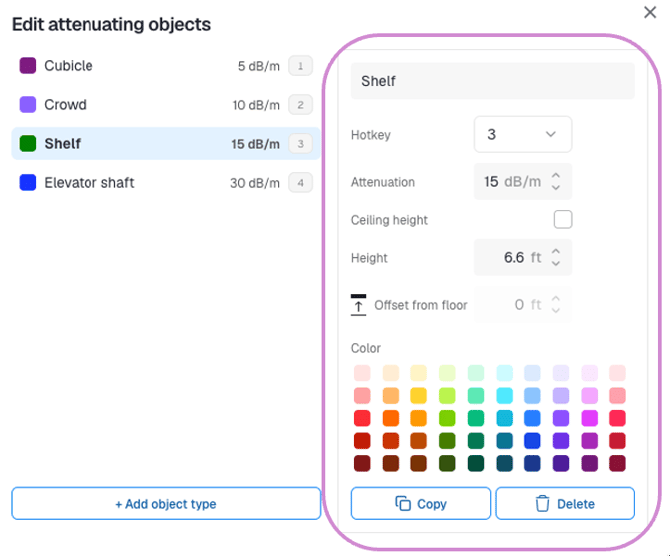
Each prebuilt object can be adjusted to match the feature you’re modeling. Use its available parameters to tailor the object to your building rather than relying on the default settings. If you need multiple similar objects, clone an existing object instead of creating each one from scratch, then adjust the copies as needed. This provides a consistent starting point for repeated elements while allowing you to account for differences between them.
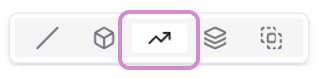
Slopes Tool
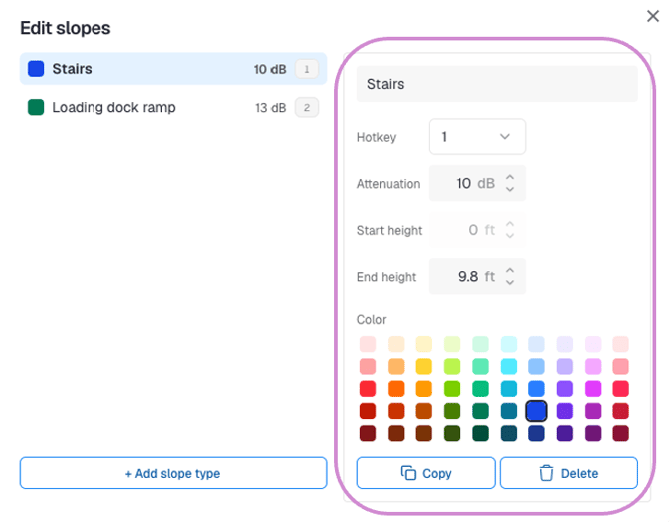
Use the slope tool to represent staircases, ramps, and other inclined features in your building model. Unlike a flat surface or a vertical wall, a slope represents a change in elevation over a horizontal distance. This makes it useful for modeling transitions between different heights, such as a ramp leading to an entrance or a staircase connecting levels.
When modeling a staircase, use the slope to represent the overall incline rather than each individual step. For ramps and other sloped features, follow the direction of the incline and match the feature’s position and extent as closely as possible. This helps distinguish changes in elevation from the surrounding flat surfaces.
Remember to set each slope’s parameters, including its starting and ending heights, to match the feature you’re modeling.Set each slope’s parameters, including its starting and ending heights, to match the feature you’re modeling.
Floor and Hole in Floor Tools
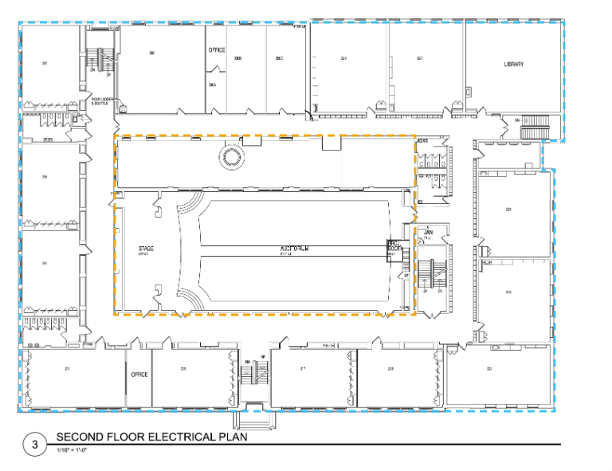
To define floor areas, draw the boundaries of the surfaces where a floor is physically present. In many buildings, the floor covers most of each level, but some spaces such as atriums, stairwell openings, or other open to below areas do not have a continuous floor surface.
Check each level individually rather than assuming the floor extends across the entire building footprint. Match the floor boundaries to the building’s layout, and account for openings where the space continues to the level below. This helps your model distinguish solid floor surfaces from open spaces and more accurately represent the building’s structure.

Choose the rectangle tool for rectangular objects or the free-form tool for irregular shapes.

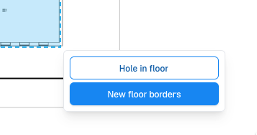
Choose Floor to draw a floor surface or Hole in Floor to create an opening in an existing floor. You must draw the floor before adding an opening.
The floor area is shown in blue, and the floor opening is shown in yellow.
Set the floor’s attenuation value to represent the signal loss through the floor.

Areas of Interest Tool
Use areas of interest to define the spaces where you want to see wireless coverage. These might include individual rooms, workspaces, corridors, or larger sections of a floor where people and devices need connectivity.
Draw the boundaries to match the spaces you want to evaluate, keeping your coverage requirements in mind. For example, you might define an office area or a warehouse work zone separately from nearby spaces where coverage is not required. This helps you focus your coverage review on the areas that matter to your project.

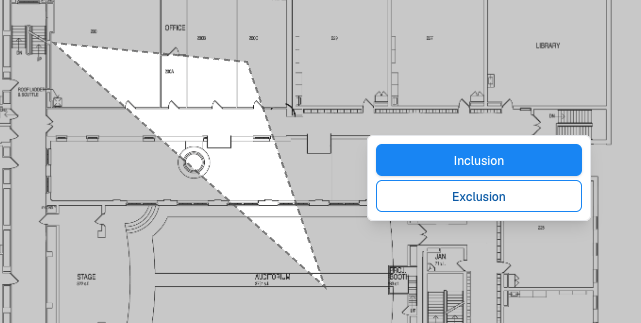
Use the rectangle tool for rectangular areas or the free-form tool for irregular shapes. Then specify whether the area is an inclusion area or an exclusion area.