
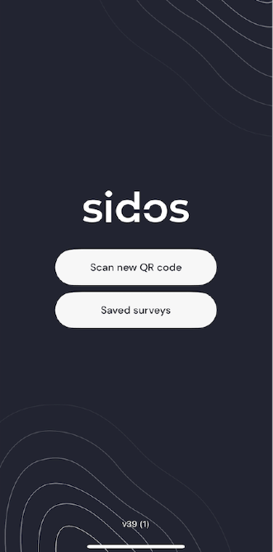
To get the update started, ensure your Sidos Mobile App is updated to the latest version. Click Here to go to the App Store.
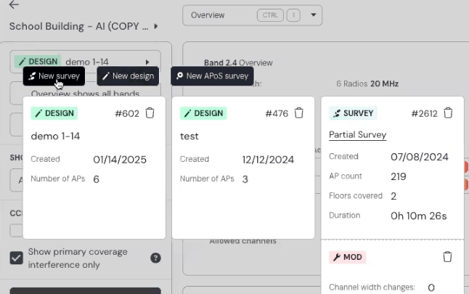
On the Sidos site, navigate to an existing project or create a new project.
From there click "New Survey".
Like any other survey, scan the QR code on Sidos Mobile App. Then connect your Wave via a USB-C data cable.
Note: Some older iOS devices may require a Lightning adapter.
Make sure you’re using a USB‑C cable that supports data transfer, not just charging.
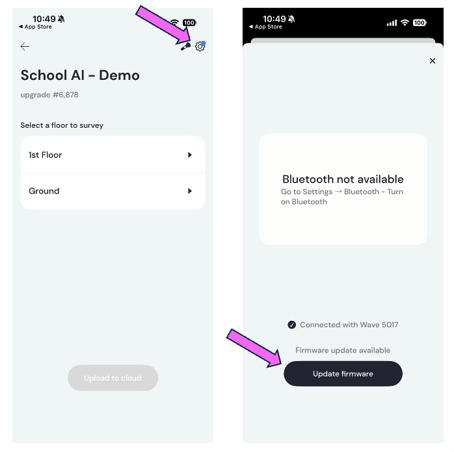
In the Sidos Mobile App, tap the gear icon in the top‑right corner. If a Wave firmware update is available, an update prompt will appear at the bottom of the screen.
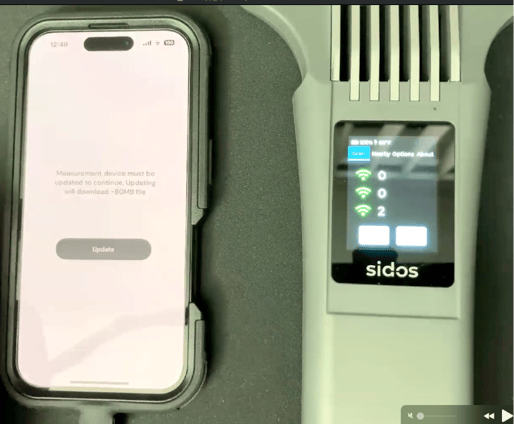
The Wave will reboot several times.
The Wave is designed without a traditional power-off button.
When not in use, the Wave automatically enters hibernation mode, which helps conserve battery life.
Need help with renewing or upgrading your Micro App licenses? Click here